

A Step-by-Step Guide to Personal Income Tax Finalization on eTax Mobile 2026
24 April 2026
A detailed guide to personal income tax (PIT) finalization on eTax Mobile for 2025, with clear step-by-step instructions and the latest updates under Decree 373/2025/ND-CP. Complete the process in just 15-30 minutes on your mobile phone.
This guide is for individuals who are filing their personal income tax (PIT) finalization for the first time, or those who have done it before but want to complete it more quickly and with fewer errors. It provides a detailed, practical walkthrough of the process on the eTax Mobile application, along with key legal notes updated in accordance with Decree 373/2025/ND-CP, effective from February 2026.
Guide to PIT Finalisation on eTax Mobile
Below is a step-by-step guide to completing your Personal Income Tax (PIT) finalisation on eTax Mobile, the official mobile application of the General Department of Taxation of Vietnam.
Step 1: How to Download and Register an eTax Mobile Account?
- How to download Etax Mobile application.
Access the App Store (iOS) or Google Play (Android), search for and download the latest version of eTax Mobile published by the General Department of Taxation.
- Registration steps
The taxpayer must have:
- Personal Tax Identification Number (TIN)
- ID card / Citizen ID / Passport registered with the tax authority
- Phone number or email to receive the OTP
Registration steps:
- Open eTax Mobile → select Register
- Enter: tax ID, ID card/Citizen ID/Passport, phone number or email
- Enter the OTP received
- Create password → Complete registration
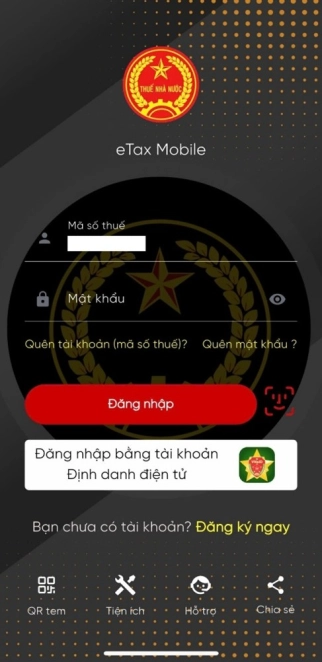
Step 2: How to Log In to eTax Mobile?
Taxpayers can choose one of two login methods:
- Log in using your Tax Identification Number (TIN) and assigned password; OR
- Log in using your electronic identity account (VNeID or equivalent).
Step 3: Look Up Information and Generate a Tax Return
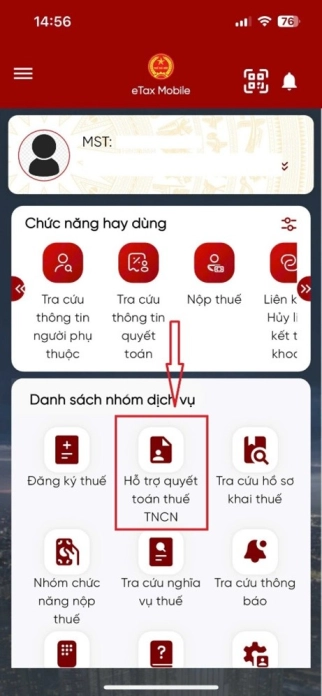
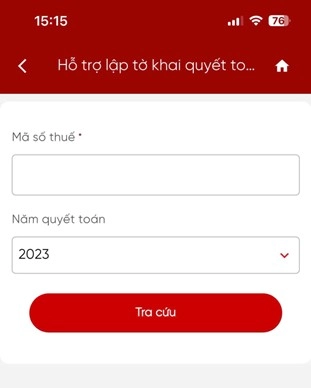
Select the menu "PIT Finalisation Support" → "Support for Drafting Finalisation Return". Select the finalisation year so the system can consolidate your income data and withholding tax figures for that period.
 |
 |
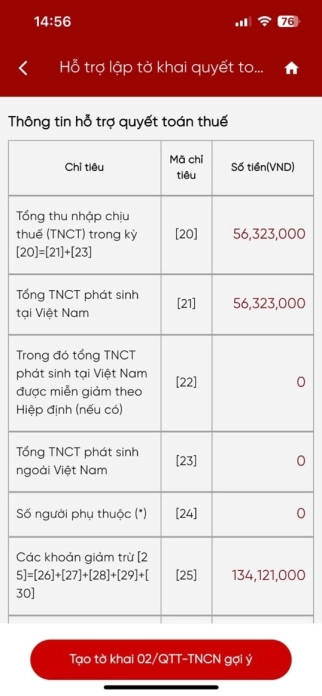
Review the data and tap "Generate Suggested Form 02/QTT-PIT":
- The system automatically pulls income and withholding data based on records submitted by your income-paying organisation(s).
- Taxpayers must carefully verify all figures — if discrepancies are found, contact the relevant employer to make corrections before submission.
- Tap "Generate Suggested Form 02/QTT-PIT" to create a draft return, reducing the risk of errors.
- Note the following pre-filled, non-editable fields:
- Return type: set to official by default, not editable.
- Declaration year: follows the selected lookup year, not editable.
- Finalisation scenario: defaults to calendar year, not editable.
- From month: auto-populated based on the finalisation year, editable.
- To month: auto-populated as the last month of the finalisation year.
Step 4: Identify the Correct Tax Authority Under the 2026 Regulations
Pursuant to Decree 373/2025/ND-CP amending Decree 126/2020/ND-CP guiding the Law on Tax Administration, effective 14 February 2026, the rules for determining the receiving tax authority for PIT finalization filings are as follows:
- If an individual receives employment income subject to withholding at source from two or more employers, the competent tax authority is the one directly managing the organization that paid the largest income during the year.
- If an individual has multiple income sources of equal largest amount, the competent tax authority is any one of the tax authorities directly managing those organizations.
Note: If a taxpayer files with the wrong tax authority, the receiving authority will transfer the dossier to the correct authority based on the tax administration's internal data system, in accordance with applicable regulations.
Case 1: The resident individual does not sign a labor contract, or signs a labor contract for less than 03 months, or signs a contract to provide services with income in one or several entities with a 10% deduction, the system will display the screen to select Province/City, District/District.
Case 2: The resident individual earns income, salary or wages in one entity and is subject to self-tax declaration in the year, the system will display the tax authority where the individual submits the tax finalization declaration dossier (according to the tax authority where the individual submits the tax declaration dossier in the year of declaration 02/KK). Individuals do not have to tick or fill in any information.
Case 3: Individuals:
- There are only 02 KK-TNCN submitted with many other Tax authorities; the system performs the comparison and always displays the tax authority where the largest source of income is located.
- At the same time, there are PIT reports of 05/QTT-TNCN and 02-KK,- TNCN, the comparison system takes the tax authorities with the largest source of income in the year. => In case the places have equal sources of income, the tax system will display a list of tax authorities for taxpayers to choose by themselves.
In other cases (other than the above 3 cases), the system displays questions for taxpayers to select and enter.
After the tax authority is confirmed, the system displays a general information screen showing:
- Tax authority name, taxpayer name, TIN, address, province/city, phone, fax, and email, auto-populated, with some fields editable.
- TIN and name of the income-paying organisation, address, and province/city, auto-populated, not editable.
Step 5: Review and Complete the Declaration Fields
Tap "Continue", the system displays the declaration fields from [20] to [48], all editable.
Verify that all data on the return is accurate and complete:
- If you registered dependants during the year: tap "Annex 02-1/BK-QTT-PIT" and enter each dependant's details: full name [10], TIN [11] or document type [12], document number [13], date of birth [14], relationship [15], deduction period [16], [17], and all other required fields.
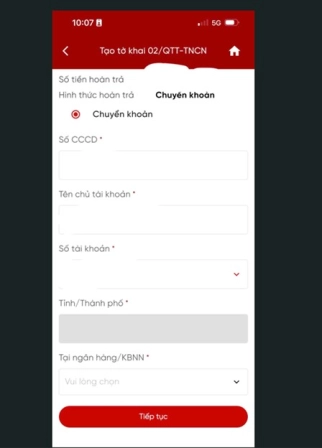
- If field [46] > 0 (tax refund applicable): enter refund details including the refund amount (per field [46]), select the payment method (bank transfer or cash), and complete all required fields accordingly (account holder name, account number, bank name, etc..)
Step 6: Enter Bank Account Details for Tax Refund
Tap "Continue", the system displays the completion screen for Form 02/QTT-PIT. Enter the bank account details in the taxpayer's name for receiving any applicable refund via bank transfer.
Step 7: Attach Annexes and Supporting Documents
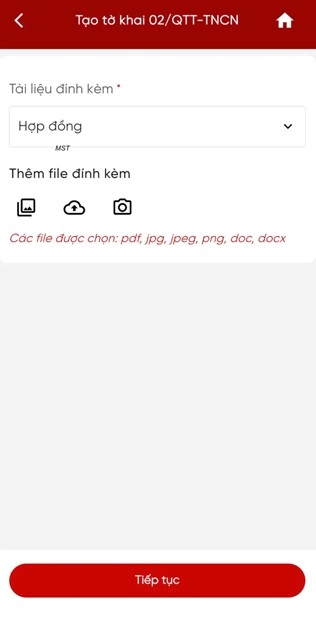
Select "Add New Annex" to attach the required supporting documents:
- Withholding tax certificates from your employer(s).
- Employment contract, transfer decision, or contract termination notice (if there were changes during the year).
- National ID card (CCCD) or passport.
Accepted file formats: PDF, JPEG, PNG. Ensure file sizes do not exceed the system's upload limits.
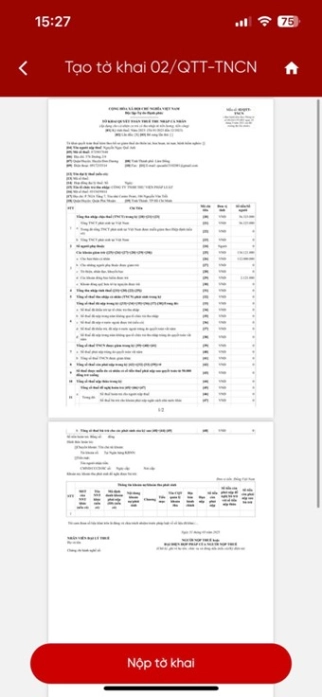
Once all documents are uploaded, tap "Submit Return".
Step 8: Authenticate Submission via OTP
Tap "Continue" after uploading all annexes. The system sends a One-Time Password (OTP) to your registered mobile number. Enter the OTP accurately to complete authentication.
Step 9: Finalise Submission
Tap "Confirm", the system will display the notification: "Return submitted successfully". Retain the acknowledgement reference number to track your dossier status.
Key Considerations When Filing PIT on eTax Mobile
- Suggested Form 02/QTT-PIT is for reference only. The system aggregates data based on what employers have reported to the tax authority. Taxpayers remain fully responsible for verifying, reconciling, and supplementing all information before submission.
- Prepare the following documents in advance:
- Personal details: TIN, national ID card (CCCD) or passport, residential address, registered phone number.
- Required documents: withholding tax certificates, employment contract, transfer decision, or termination notice (if employment changed during the year).
- Dependent deductions: supporting documents (birth certificates, school enrolment confirmation, guardianship papers, identify card etc., where applicable).
- Eligible deductions: voluntary pension insurance premiums, charitable and educational donations: qualifying supporting document
- Bank account in the taxpayer's name for additional tax payments or refund receipt.
- Where tax liabilities from prior years remain unpaid, the taxpayer shall fully discharge such liabilities before carrying out the tax finalization procedures for the following year.
Does Your Business Need Support with PIT Finalization for Your Entire Workforce?
If managing PIT finalisation for dozens or hundreds of employees is placing significant strain on your accounting team, Forvis Mazars' Payroll & Outsourcing services can manage the entire process on your behalf, from data collection and return preparation to timely filing, with professional accuracy and full compliance with the latest regulations.
Our experts

21 Oct 2026
Circular 118: IFRS for Vietnam IFC Members
On 18 August 2026, the Ministry of Finance issued Circular No. 118/2026/TT-BTC on the eligible entities, scope, and manner of applying International Accounting Standards (*) in Viet Nam. Circular 118 establishes an election for eligible members of the International Financial Center in Viet Nam (the IFC), not a general mandate to apply International Financial Reporting Standards (IFRS) for all Vietnamese...

15 Oct 2026
Vietnam Construction Law 2026 Updates
The Government has issued six key decrees implementing the new construction law framework, all effective from 1 July 2026. These decrees form the core implementing framework of Vietnam’s new construction regime and introduce substantial changes affecting the development, procurement, execution and management of construction projects. The six decrees are Decree No. 206/2026/ND-CP, Decree No. 207/2026/ND-CP,...

9 Oct 2026
AI Adoption in Vietnam
Vietnam has elevated AI within a broader industrial and digital capability agenda through Decision 1131/QD-TTg (11 strategic technology groups and 35 strategic technology products) and enacted its first standalone Law on Artificial Intelligence (Law No. 134/2025/QH15) on 10 December 2025, effective 1 March 2026, introducing a risk-based classification concept (high/medium/low). This article summarizes...

12 Aug 2026
Valuation methodologies for digital assets
This guide sets out how venture capital (VC) firms and crypto funds should approach digital asset valuation as Vietnam moves toward a licensed, onshore digital asset market. It covers the principal categories of digital assets, from cryptocurrencies to stablecoins, the valuation methodologies suited to each, and the Quantity Theory of Money (QTM) as a strategic framework for analyzing tokenomics.

24 Jul 2026
Circular 99/2025/TT-BTC
On 27 October 2025, the Ministry of Finance officially issued Circular 99/2025/TT-BTC ("Circular 99") providing guidance on the corporate accounting regime. The Circular has been effective since 1 January 2026 and applies to financial years beginning on or after that date. Vietnamese enterprises should now ensure that their accounting policies, systems and reporting processes reflect the new requirements.